Restoring Old Family Footage Without Making It Look Fake
AI restoration can bring a 1960s reel back to life or turn your grandmother into a waxwork. The difference is restraint, applied in the right order.
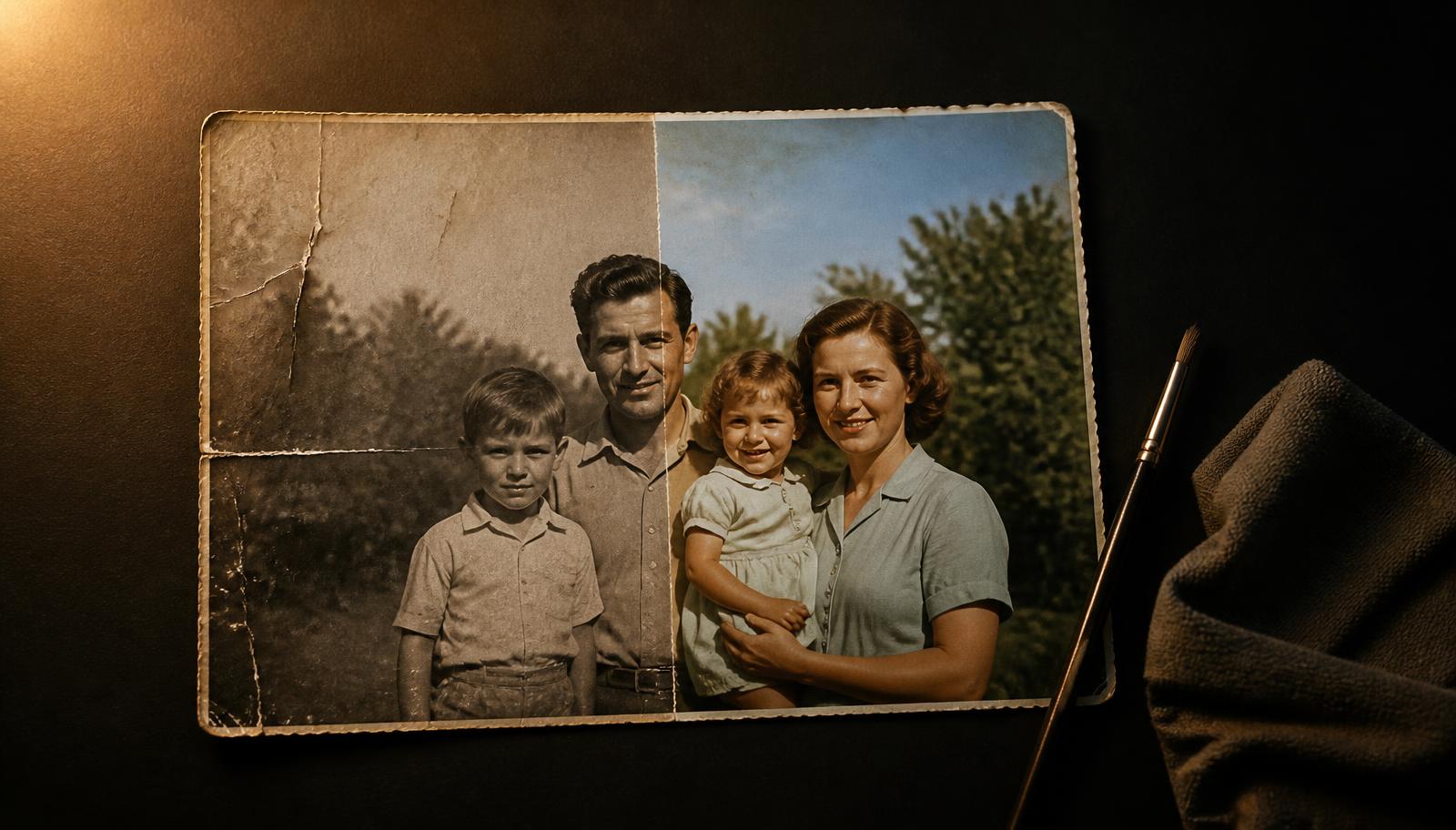
There is a specific uncanny look to over-restored archive footage: skin like plastic, colors that belong to a different decade, movement that glides where it should stutter. It happens when every enhancement is turned on at once. Restoration is a sequence, and order matters more than strength. What ReelVision AI does explains where restoration sits alongside generation.
Work in this order
- Stabilize only what is distracting, leave the handheld character intact.
- Clean damage: dust, scratches, tears, splice marks.
- Recover detail before touching color.
- Colorize conservatively, period-appropriate, low saturation.
- Interpolate motion last, and only if the source stutters badly.
Color: less than feels right
Mid-century film stocks were not vivid. If your restored 1958 garden party looks like a modern phone video, you have gone too far. Pull saturation back until the greens look slightly muted and the skin tones sit warm but pale, that is roughly where the original stock lived.
Faces are where restraint pays
Detail recovery on faces is the most tempting and most dangerous step. Recover structure, the edge of a jaw, the fold of a sleeve, and stop before pores appear that the lens never resolved. Invented detail is the tell.
Drag the handle left or right to compare. Audio plays from the original track.
Keep the original
Always archive the untouched scan or transfer alongside the restoration. Taste in restoration changes, tools improve, and the only irreplaceable file is the one you started with. If you want to extend the restored footage with new shots, start from the prompt structure guide.
Restore a reel
Upload an old clip or photograph and work through the sequence above one step at a time.
Open Restore HDFrequently asked
The ReelVision AI editorial team writes about cinematic AI video production, prompt craft, and the workflows behind believable footage.
Try this in ReelVision AI
Everything in this article is one prompt away. Open the studio and render it with locked characters, native audio, and real cinematic motion.
Start CreatingCinematic AI craft, weekly
One email. Prompt breakdowns, camera language, and workflows that make AI footage look directed.
No spam. Unsubscribe in one click.
Related articles
 Trending
Best AI Video Prompts (2026): 100 Copy-and-Paste Prompts That Actually Work
One hundred original, tested AI video prompts across 20 categories, each with a copy button and a short explanation of why it renders cleanly instead of muddy.
 Trending
The Complete AI Video Prompt Guide (2026 Edition)
The seven-part framework we use to write AI video prompts that behave predictably, plus tested examples for cinematic, ultra realistic, anime, commercial, social, and YouTube Shorts work.
 Trending
The Anatomy of a Cinematic AI Video Prompt
Most AI clips fail for one reason: the prompt described a picture instead of a shot. Here is the six-part structure working directors use.